Data Feeds and Upload Wizards
Data Feeds and the Upload Wizards both provide ways to bulk upload data into paiyroll®:
Data Feeds are streamlined workflows for common, regularly-used situations.
Upload Wizards are for highly interactive configuration data (e.g. adding new Departments).
Data Feeds
Data Feeds are implemented using Reports:
The submission aspect of a Data Feed report implements the logic of the data feed.
The viewing aspect of a Data Feed report typically summarises the results of a data feed run.
There are several types of Data Feed using either manual upload of files, or networking to fetch data. To use a Data Feed, create a Report Definition based on the required Report Template.
Report Template |
Manual or Networked |
Notes |
|---|---|---|
Upload shifts CSV |
Manual, using CSV |
A file containing details of shift payments. |
Upload workers CSV |
Manual, using CSV |
A file containing details of workers. |
GB HMRC Data Provisioning Service |
Networked |
Downloads updates from HMRC. |
GB PAYE tax code changer (P9X) |
Manual |
Must be invoked after all pay runs for a tax year. |
Report Templates for Data Feeds are implemented using different engines depending on the nature of the data feed. These engines form the basis of the customisability (for text-based reports), behaviour of the report (for network-centric reports) and so on as described here.
Data Feed engines
Text files, CSV
Comma-separated-value files can be generated from any spreadsheet program, and many systems also them to support automation and integration. They can be specified using the following settings:
- Columns
How each column is generated. Specified as a set of key-value pairs where the key is an expected output column, and the value is is a string written using a macro language. The macro language can specify:
Fixed text.
Data items specified using the notation {input-column}. Each input-column is a heading in the incoming CSV file, transformed by removing any non-alphanumeric-or-underscore characters.
Formatting options.
The expected output column names depend on the Report Template, and the inputs rows of the CSV file are transformed into the output using the expansions of the macros.
- CSV dialect
- CSV fmtparams
For example “Columns” might be set as follows:
{
    "Works id": "{WorkerId}",
    ...
    "Display as": "[{ref_t}.{row_number}] {Date}, {ClientName}, {RoleName}"
}
Here, the incoming CSV file has a column headed “Worker Id”, which is transformed into input-column “WorkerId” and which is used as directly as the value of “Works Id”.
Similarly, “ref_t”, “row_number”, “Date”, “Client Name”, “Role Name” are transformed, combined and formatted using “[.] , ,” to form the “Display as” value.
These reports also have both a submission aspect and a view aspect.
Networked Data Feeds
This supports the electronic retrieval of data from external agencies. Reports Definitions using these templates typically have some kind of credential settings; where needed these are stored in encrypted form.
These reports also have both a submission aspect and a view aspect.
Universal Data Feeds
Universal Upload shift CSV
The uploaded file uses PayPer-based Pay Items to describe shifts worked. Each report definition specifies:
- Pay items
The names of the pay items
- Columns
How each column is generated
- Decimal places
Rounding for Rate and Units
- CSV dialect
- CSV fmtparams
The file must conform to the following:
The content must be CSV format data. The exact style of CSV can be configured using the Report Definition.
The first row must contain headings. Each heading will be converted into an input-column and each resulting input-column must be unique.
Each following row must define a single worked shift, define using the fields described below. Each field is extracted by transforming the data in the row using a set of input-columns and the Row template which is configured on the Report Definition. In some specified cases, some predefined input-columns are added by the CSV engine itself.
- Works id
The works_id of the worker.
- Worker name
The name of the worker.
- Rate
The pay rate as a float.
- Units
The units worked as a float.
- Display as
The input-columns are supplmented by the predefined ref_t specifying the upload date and row_number.
Examples:
If the CSV file has a column called “Candidate Id” which is exactly the same as the field “Works id”, the transform template would be simply:
"{CandidateId}"
If the CSV file has columns called “Shift-location” and “Shift-date”, the “Display as” field could be set to:
"{ref_t}: {CandidateId} worked at {Shiftlocation} on {Shiftdate}"
Complete example:
{
    "Works id": "{WorkerId}",
    "Worker name": "{WorkerName}",
    "Rate": "{HiringRate}",
    "Units": "{TotalHours}",
    "Display as": "{ref_t}: {Date}, {ClientName}, {RoleName}"
}
Warning
Care should always be taken with files whose fields can be misinterpreted. For example, incorrect use of spreadsheet editing software can accidentally convert strings such as 000123 into the number 123.
GB Data Feeds
GB Upload workers CSV
The uploaded file adds or updates workers. Each report definition specifies:
- Columns
How each column is generated
- CSV dialect
- CSV fmtparams
- Add from
A test employee from which to seed pay items for new workers
The file must conform to the following:
The content must be CSV format data. The exact style of CSV can be configured using the Report Definition.
The first row must contain headings. Each heading will be converted into an input-column and each resulting input-column must be unique.
Each following row must define a single worked shift, define using the fields described below. Each field is extracted by transforming the data in the row using a set of input-columns and the Row template which is configured on the Report Definition. In some specified cases, some predefined input-columns are added by the CSV engine itself.
The available fields are country dependent, but fall into the following groups:
- <common>
Country-independent fields such as “title”, “name” and “works_id”.
- <postaldetail>
Postal details, prefixed by “postaldetail.”.
- <taxdetail>
Employer-specified tax details, prefixed by “taxdetail.”.
- <taxeedetail>
Worker-specified tax details, prefixed by “taxeedetail.”.
- <bankdetail>
Banking details, prefixed by “bankdetail.”.
Examples:
Working days is an array of boolean values that specifies the weekly working pattern. Notice how the “working_days” are specified using doubled “{{” and “}}” to escape interpretation as a key name:
"{{true,true,true,true,true,true,true}}"Complete example:
{
    "email": "{EmailAddress}",
    "is_active": "True",
    "title": "",
    "name": "{WorkerName}",
    "mobile": "+{PhoneCountryCode}{PhoneNumber}",
    "works_id": "{WorkerId}",
    "start_date": "2019-06-01",
    "working_days": "{{true,true,true,true,true,true,true}}",
    "end_date": "",
    "department": "Washers",
    "postaldetail.line1": "{AddressLine1}",
    "postaldetail.line2": "{AddressLine2}",
    "postaldetail.line3": "{Town}",
    "postaldetail.line4": "{County}",
    "postaldetail.postcode": "{Postcode}",
    "taxdetail.weekly_hours_worked": "Other",
    "taxdetail.P45_tax_code": "",
    "taxdetail.P45_week1_month1": "False",
    "taxdetail.P45_leaving_date": "",
    "taxdetail.P45_total_pay_to_date": "",
    "taxdetail.P45_total_tax_to_date": "",
    "taxdetail.P45_continue_student_loan": "0",
    "taxdetail.P45_continue_postgraduate_loan": "0",
    "taxdetail.NI_category": "General",
    "taxdetail.director": "False",
    "taxdetail.director_from": "",
    "taxdetail.director_NI_cumulative": "False",
    "taxdetail.paid_irregularly": "True",
    "taxeedetail.date_of_birth": "{DateofBirth}",
    "taxeedetail.gender": "{Gender}",
    "taxeedetail.NI_number": "{NINumber}",
    "taxeedetail.employee_statement": "",
    "taxeedetail.student_loan": "0",
    "taxeedetail.postgraduate_loan": "0",
    "bankdetail.account_name": "{WorkerName}",
    "bankdetail.sort_code": "000000",
    "bankdetail.account_number": "00000000"
}
Warning
Care should always be taken with files whose fields can be misinterpreted. For example, incorrect use of spreadsheet editing software can accidentally convert strings such as 000123 into the number 123.
GB HMRC DPS
This Data Feed’s submission aspect fetches PAYE and tax code (P6 and P9), student loan and post-graduate loan (SL and PGL) updates from HMRC’s Data Provisioning Service and applies them to workers. Other notifications are also fetched and stored.
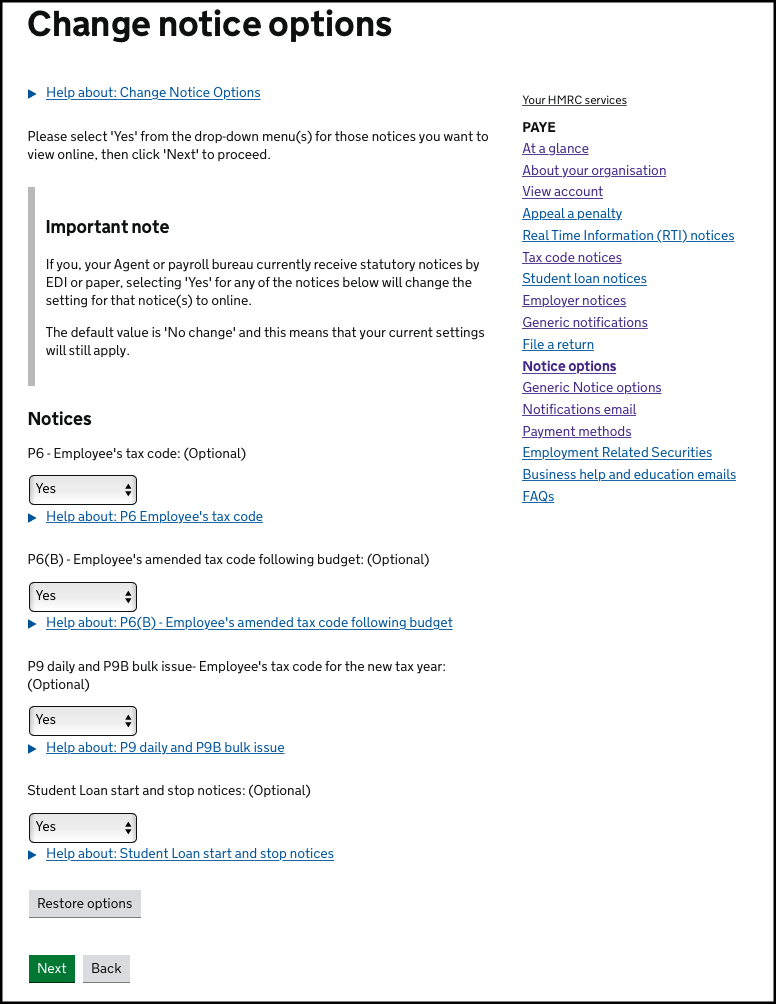
Before you can use this service, all notice options need to be set to online in your HMRC PAYE services. To change notice options, navigate to:
Messages > PAYE for employers messages > Change how you get tax code and student loan notices
Ensure all options are set to YES and press NEXT (noting that only future notices issued after this change will be available online for this data feed):
Each report definition specifies:
- Dry run
If set, discard results and some errors become warnings
- DPS username
Credentials
- DPS password
Credentials
The results of the submission aspect are recorded and can be seen in the view aspect using the history on My Data Feeds:
PAYE updates by worker:
1762: {'PAYE.Tax code': '944L', 'PAYE.Effective date': '2014-05-18', 'PAYE.Previous pay': '2200.00', 'PAYE.Previous tax': '315.00'}
Tax code updates by worker:
1762: {'PAYE.Tax code': '944L', 'PAYE.Effective date'}
SL updates by worker:
1762: {'SL.LoanStartDate': '2016-07-17', 'SL.Plan type': '02'}
1768: {'SL.StopDate': '2014-02-06'}
2762: {'SL.LoanStartDate': '2019-04-10', 'SL.PGL': True}
NI number updates by worker:
1762: 'SH445566A'
2762: ''
Other notifications in generic form:
{
    'date': '2013-09-23', 'title': 'Late filing notice',
    'text': "Our records indicate that your Full Payment Submission (FPS) dated 15/09/2013 was sent late. You must send an FPS on, or before, the time you pay your employees. In future, please ensure that your FPSs are sent on time. From April 2014, you may incur penalties if you file your FPSs late.\nIf you think this notice is incorrect please contact HMRC's Employer Helpline.",
    'content': {
        'Information': {
            'InformationItem': {
                'DisplayName': 'Date of Receipt', 'Value': '2013-09-15'
            }
        }
    }
}
{
    'date': '2013-09-23', 'title': 'Invalid DOB',
    'text': 'Change DOB 03/02/1975 to 03/02/1982, DOB 02/08/1990 to 12/08/1990, DOB 31/09/1985 to 21/09/1985 for Shawcross.',
    'content': {
        'Change': {
            'ActionItem': {'DisplayName': 'Date of Birth', 'PreviousValue': '1990-08-02', 'Value': '1990-08-12'}
        }
    }
}
{
    'EmployerDetails': {
        'EmployerRef': '123/1739465',
        'HMRCoffice': {...},
        'Name': "Andy's Joinery Services", 'Address': {'Line': 'Any City', 'PostCode': 'CC22 2CC'},
        'AORef': '234PL5678901'
    },
    'NotificationText': "Notification to complete a PAYE Annual Return. This notice requires you...",
    'FormType': 'P35', 'HeaderText': 'PAYE instructions to employers', 'IssueDate': '2013-05-02',
    'SequenceNumber': '3226', 'TaxYearEnd': '2014'
}
GB PAYE tax code changer (P9X)
This data feed updates tax codes at the end of the tax year. It must be invoked after all pay schedules for a Company have had their last pay run for the tax year, and before the first pay runs of the new tax year.
Each report definition specifies:
- Dry run
If set, some errors become warnings and results are not saved
The results of the submission aspect are recorded and can be seen in the view aspect using the history on My Data Feeds, tax code updates by worker:
1762, '944L', '920L'
Upload Wizards
There are Upload Wizards for most objects such as:
Employee
Department
The data supplied by the uploaded file is different in each case, and listed when the Upload button is selected on the relevant object listing page. (See Importers for information on uploading an entire company structure).
Generally, the interactive nature of the wizard facilitates review of the data being imported, and so reduces the chance of error. For most fields, the format of the data being uploaded is clear from the context.
Warning
Care should always be taken with files whose fields can be misinterpreted. For example, incorrect use of spreadsheet editing software can accidentally convert strings such as 000123 into the number 123.
Foreign keys
However, fields which represent links in the database (i.e. foreign keys) must convey extra information to allow the linkage to be created. This is done using a “;” to split the field as needed:
value1;value2
For example, the Employee upload must specify:
- title
This is a link to the Title, and so is simply specifed as the text equivalent of the Title, for example:
Mr.
- company
This is a link to a Company, and must be specified using the text equivalent of the Client and Company, for example:
ACME group;Drilling Ltd
- department
This is a link to a Department, and must be specified using the text equivalent of the Company and the Department. However, since the Company must be specified as above, this second level of “;” must be escaped:
ACME group\;Drilling Ltd;Audit and Accounts