You can use the Pay Item Editor to view the historical details of any pay item. You can look at:
- The values of the inputs.
- The values of the calculated outputs.
- The values of the calculated internal “state”.
- These are values the pay item uses to remember what it did across pay runs. For example, some pay items remember year-to-date totals.
To view any of these, go to the Pay Item Editor for the employee, and you’ll see a “clock” symbol at the end of each row. Click on that, and you can see a historical overview of the values by pay run. For example, to look at a person’s Salary inputs, locate the Salary row and click the “clock”:
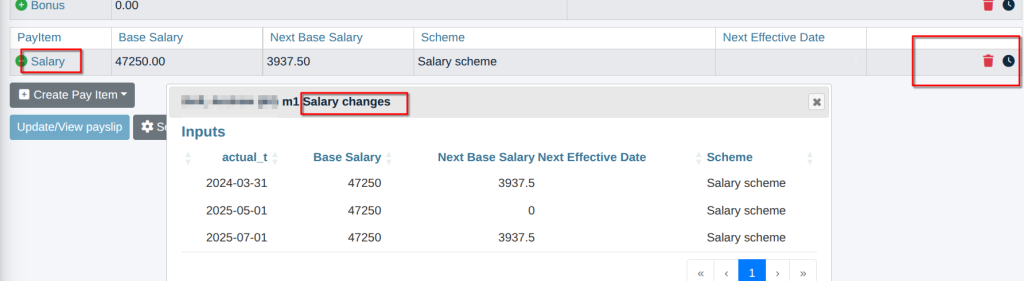
View previous input values #
The “Inputs” are shown by default. You can click on the “Outputs” or “State” heading to see the other data:
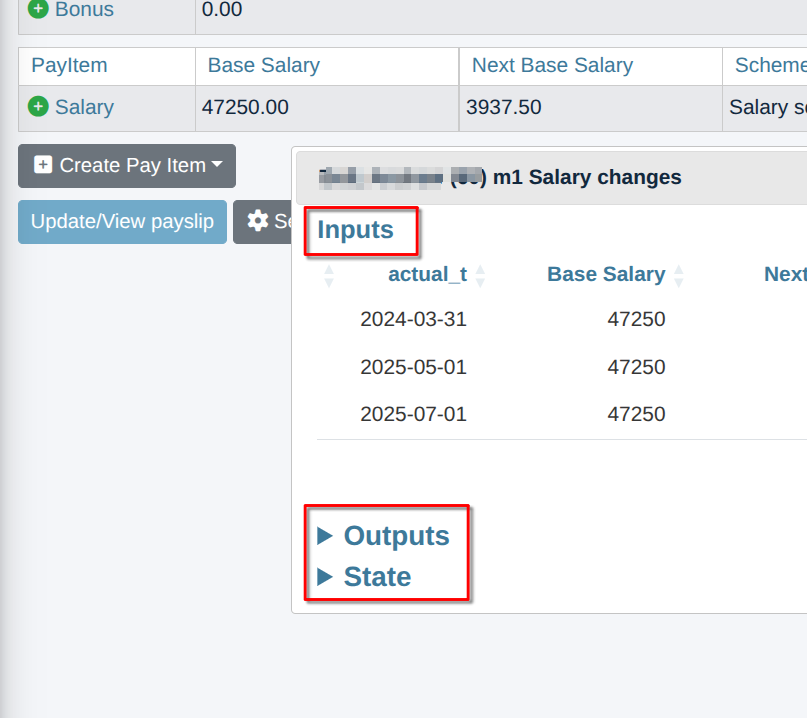
Note that, for brevity, rows where there was no change are not shown. So, in the above example, there was no change in Base Salary for the pay runs between 2025-05-01 and 2025-07-01.
Also, there can be multiple pages of results.
View previous calculation state (e.g. Statutory SMP SPP SPBP) #
Follow these steps to view the internal calculation “state” history:
- Pay item editor and search for the employee or Employee setup > update the employee then select the Pay item editor tab
- Click on the History (clock icon) – to the far right of the SMP pay item – this will display a pop-up window that shows all the changes (input, output and state)
- Click the arrow next to State to open the State History
- Resize the pop-up by grabbing an edge so you can see all the history noting that there may be multiple pages.
- In the example shown below, we can see the date SMP started and the history of the days paid
