Follow this advanced guide if you need to update or repair employee or company state. The examples below are provided for the company state, but the same process can be followed for the employee state.
Download the current state #
Companies > Download… > Select the Company and click Download to download a CSV file of current company state:

For employees, go to Employees > Search to filter the required employee and click Download filtered… to download a CSV file of the current employee state.
IMPORTANT! #
Since you will be updating state values, please keep an original copy of the existing state before making changes. That way, you will always be able to easily restore the previous state. Save a copy of the file and ensure that this copy remains unchanged.
Add or Edit new state #
Use a spreadsheet editor to edit the file. If you have not approved any pay runs you will add new state, if you have approved pay runs you will edit existing state.
- Ensure you retain all normal columns up to the bankdetail.BACS_SUN Unchanged – this is the last normal column before the state columns.
- State columns are prefixed with “$”
- The “+” suffix tells paiyroll® that you wish to update the existing state
Add new state (no approved pay runs) #
- If the column required exists in the file, simply re-use it, If the column is not present, you will add a new column
- In the example below, we will add a value for Employment Allowance. Add a new row heading $report.GB RTI EPS.employment_allowance+ in W1 and the value in W2:

Edit existing state (approved pay runs) #
- Carefully modify and edit the new row 2 value in your state column
- In the example below, the recoverable SMP values are being repaired:

File > Save As and choose Excel Workbook (.xlsx) format:
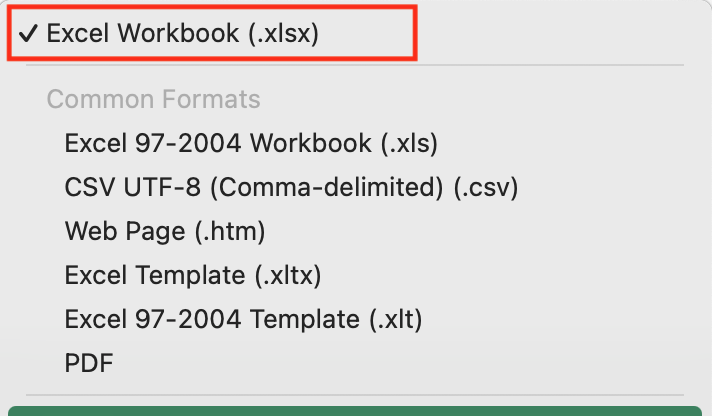
Tip: If you keep the file in CSV format, you will get the error : taxdetail.Auto_Enrolment_staging_date: “31/01/2024” value has an invalid date format. It must be in YYYY-MM-DD format – this can be fixed by changing the cell to ‘2023-01-31 or formatting the date cell to be ISO format yyyy-mm-dd 2023-01-31
Upload new state #
For a Company, go to Companies > Upload…; for an Employee, go to Employee > Upload
Select Company file wizard page #
- Select the GB Jurisdiction
- Choose the file you saved above (ensure you select the Excel Workbook (.xlsx) format if you save that previously)
- Click Upload file to server…

Edit to select Company data wizard page #
- Click Pre-process selected data…

Review Company data to publish wizard page #
- Check the Updated Company records by scrolling to the right – there should be no changes to your normal company columns.
- The updated state column is not shown
- Click Publish…

Check New State #
Your new state has been uploaded. If you wish to check the values:
- Companies > Update the Company or Employees > Update the employee
- Scroll all the way to the bottom and click View State button
- The Company state will be shown

Errors with numbers in Excel xlsx #
Change numbers to text by adding a preceding single quote ‘ e.g.
'111111
Repairing Employee NIC State #
$pay.NIC.Letters and Values #
NIC state is kept in $pay.NIC.Letters and Values. This is a complicated structure with multiple fields.
The 3 critical fields to update are GP-YTD, Er-YTD and Ee-YTD. The values will be after the last pay run submitted, ie., before the next pay run to be processed.
| paiyroll® | RTI FPS | Notes |
|---|---|---|
| GP | 79B GrossEarningsForNICsInPd | Use 0 – will be generated each pay run |
| GP-YTD | 79A GrossEarningsForNICsYTD | Employee’s total gross earnings subject to NICs to date |
| Er | 86A TotalEmpNICInPd | Use 0 – will be generated each pay run |
| Ee | 86B EmpeeContribnsInPd | Use 0 – will be generated each pay run |
| Letter | 79 NIletter | Leave unchanged |
| Er-YTD | 86Aa TotalEmpNICYTD | Total employer’s Class 1 NICs payable YTD |
| Ee-YTD | 86Ba EmpeeContribnsYTD | Total employee’s NICs payable YTD |
| LEL-YTD | 82 AtLELYTD | Total earnings included in gross pay for NICs at the lower earnings limit (LEL) to date (very difficult to calculate) |
| LEL-PT-YTD | 82A LELtoPTYTD | Total earnings included in gross pay for NICs above the LEL, up to and including the primary threshold (PT) to date (very difficult to calculate) |
| PT-UEL-YTD | 169 PTtoUELYTD | total earnings included in gross pay for NICs above the PT, up to and including the upper earnings limit (UEL) to date (very difficult to calculate) |
Note that there may be multiple NIC blocks if the employee has more than one letter in the tax year.