Follow this guide to understand how to correctly edit and modify a file.
Formats #
CSV Comma-Separated Values is a Text format where values are separated by commas. Excel XLSX is a completely different compressed format.
Almost all uploads and imports will require dates, bank account details, and strings to be in a specific format. If this format is incorrect, the upload or import will fail.
WARNING: If you edit a CSV in Excel, you are almost certain to corrupt the original data because Excel will change date formats, strip leading zeros from bank details and may convert bank accounts to datesExamples of Excel CSV corruption:
Type of data Original CSV Text Saved CSV corrupted by Excel Text Date 2026-04-02 2/4/2026 Date 2/4/2026 2026-04-02 Bank Sort Code 12-04-26 4/12/2026 Bank Account number 0123456 123456
Editing CSV #
If you need to edit a CSV file, you generally should not use Excel.
Instead, you must use either:
- A simple text editor, such as Notepad or TextEdit, is quick and easy, but does not display the data in a grid format.
- The data will be comma-separated, so you can edit values between the commas
- Never delete any commas
- Save the file
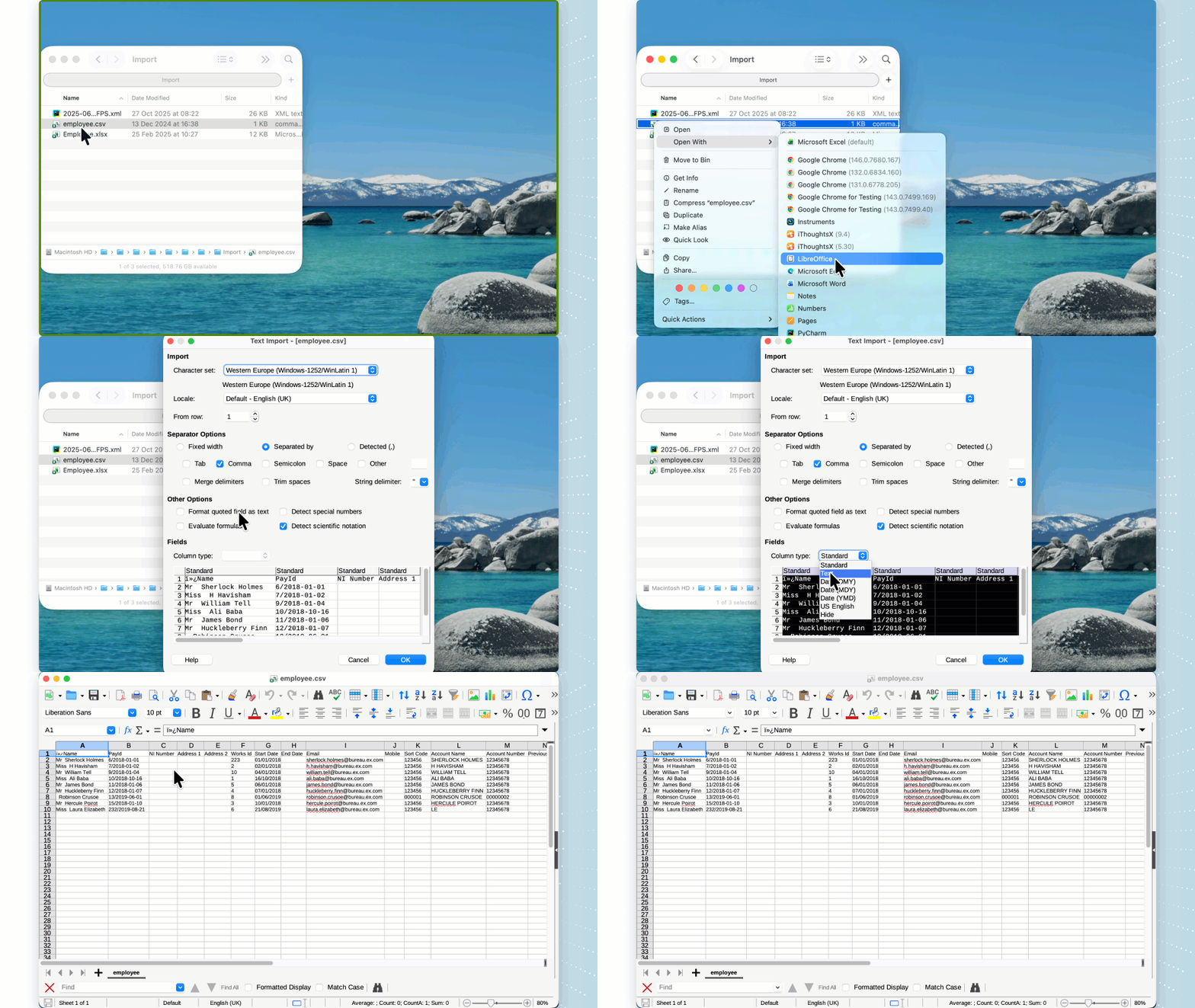
- Alternatively, you can download LibreOffice, which is free and better suited for larger files and shows the data in an easier-to-use grid format
- Right-click > Open with Libre-Office
- Ensure Comma is ticked
- Select all columns by clicking in the small square above the number one and ensuring the preview table turns black, confirming all columns are selected
- Change column type to Standard
- OK to import the CSV
- Make any edits and then save the file
In some circumstances, you may be able to use Excel by setting the formats before saving a CSV. However, this is not recommended due to the issues highlighted above.
Checking a CSV file #
If in doubt about the format that has been saved, always view the file in a simple text editor, never in Excel.
Converting a CSV to XLSX #
paiyroll® may support XLSX format as well as CSV in some situations. If this is the case, you can use Excel to convert a CSV file to XLSX.
- Open the CSV file in Excel
- Make the required edits
- Any Numbers will need to be converted to Text
- Either prefix them with a single quote ‘
- Use Data > Text to Columns wizard to convert columns to Text
- The file must be saved as an XLSX workbook format