If the pay run has already been approved, but you need to make a correction, consider whether you can use one of these 2 alternative options:
- Apply the correction in the next pay run in line with the HMRC advice summarised below:
- Run a Custom pay run (supplementary run) for just the workers affected
If you’ve reported the wrong pay or deductions

        To correct a mistake made in the current tax year, update the year-to-date figures in your next regular FPS.
If not, you can perform a Rewind.
Before #
Before rewinding, you should follow the on screen instructions and links to:
- Save the current Pay Items.
- Download any viewable reports which may be needed for comparison purposes.
To Rewind #
Navigate to the Pay Runs listing.

Click the Rewind button:
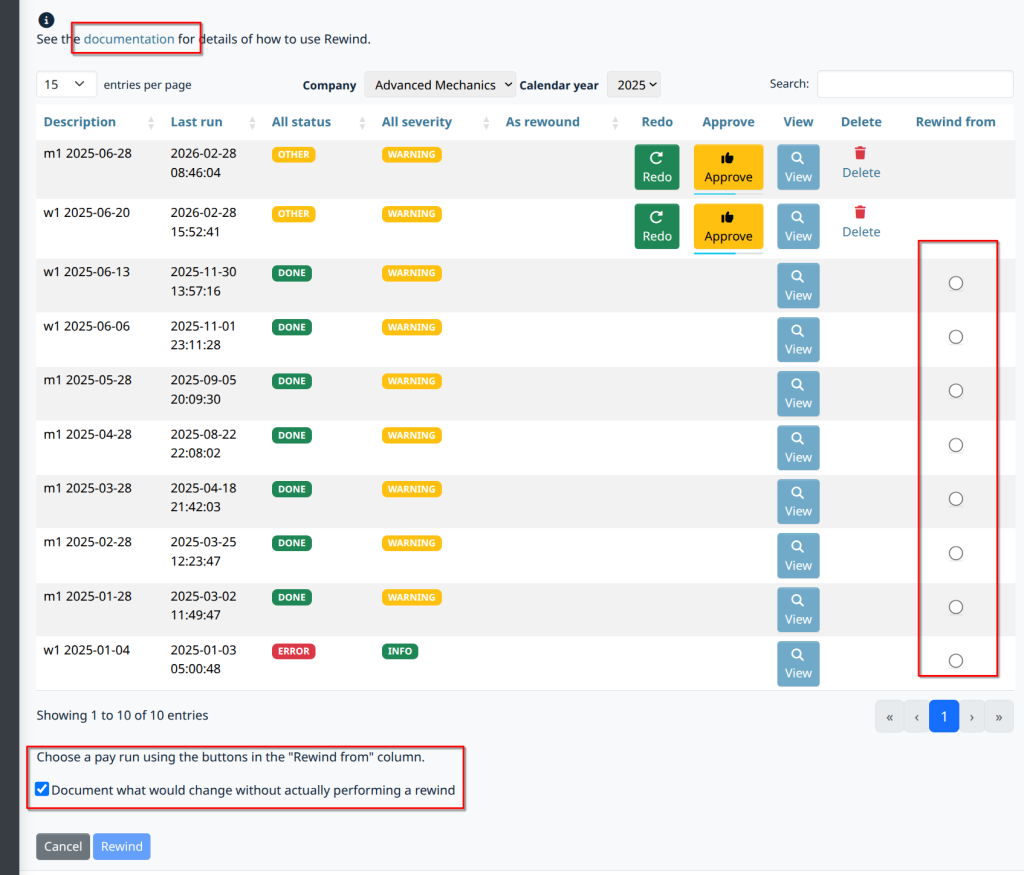
As highlighted, you can see:
- A link to the Rewind documentation.
- This includes detailed information on the effects of Rewind and how to use it.
- We recommend that you familiarise yourself as needed; this guide is a shorthand covering the basics.
- Radio buttons on the right let you select the pay run to rewind.
- There are one or two tick boxes.
- The second tick box appears when you select a pay run.
Dry run #
The first tick box allows a dry run: use it to see whether rewind will work. This will document what would change without actually performing a rewind.
The second tick box gives a warning: Please consider that the “replacement” pay run will regenerate all HMRC, bank, pension, and other outputs from scratch, but only HMRC RTI reports will be re-submitted if reqquested.
Perform the rewind #
Now:
- Perform the Rewind by clearing the dry-run check box and clicking Rewind.
Here are some screenshots (details will vary, and you may want to refer to the documentation). For example, starting your rewind from May even though the current pay run is September:
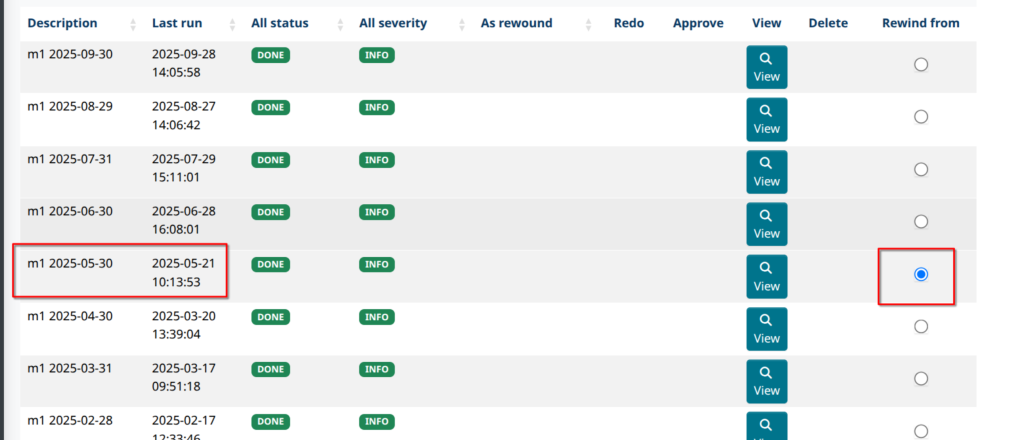
After a few moments, your browser will download a log file with details of what was done, and a pay run for May will start.
Pay runs #
Once the rewind is complete. You will find it more convenient to navigate to the pay runs screen, where you will see your checked-out pay run. You should then see something like this:
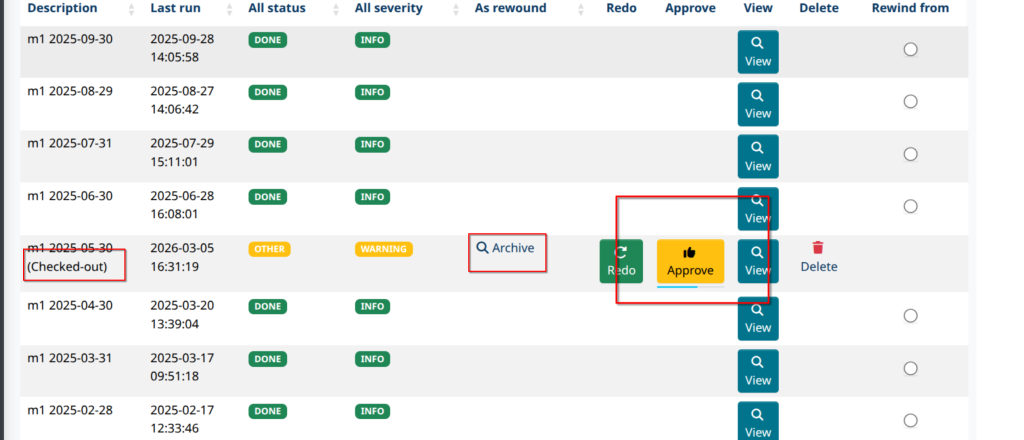
Note the “Checked-out” state: this tells you where you are. The “Archive” button takes you to a permanent record/summary of the rewind.
Now, if you “Approve”, you’ll be presented with rewind-specific options including control over:
- Automatically rippling forward to skip pay runs where no manual corrections/changes are needed.
- Or simply go step by step, making changes as needed.
- Whether or not to resubmit a special subset of Report Definitions as you ripple forward.
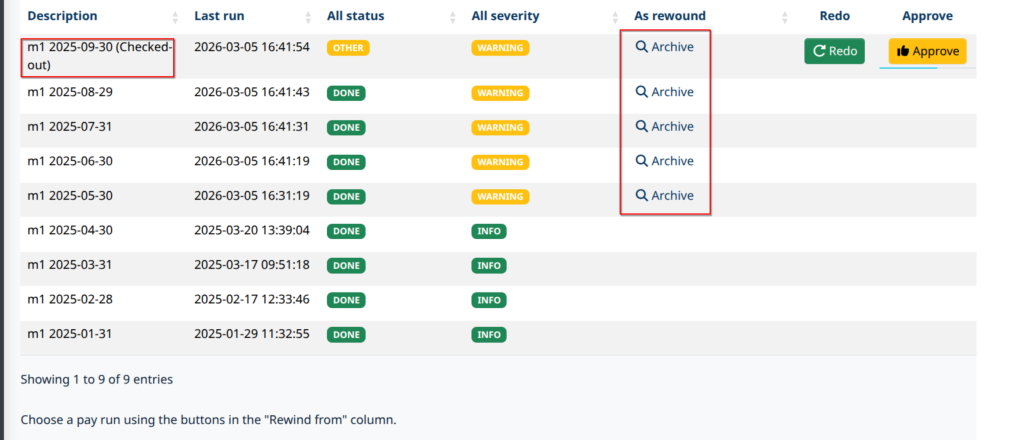
For this example, if you were to ripple forward all the way to September, you would end up with:
Start the pay run #
Depending on your choices, after the rewind is complete, you may need to manually start the scheduled pay runs:

If you are unfamiliar with the steps needed to start a Scheduled pay run, follow the Starting a Pay Run guide.
Review the interim pay run #
After the interim pay run is restarted:
- Check that the Pay Schedule dates are correct, or adjust them if needed. See Changing a Pay Schedule.
- Now make any other changes and corrections that require the rewind to be done.
- If you make changes, you must then do a Pay run Redo.
FPS late reason #
A checked-out pay run FPS always reports late reason H (correction to an earlier submission). Whatever is set on the FPS report definition is ignored.
Approve #
After you have checked everything, approve the pay run as usual and be sure to tick “Resend submissions” to resend the all RTI and CIS submissions (the box is pre-ticked when there’s nothing later to ripple to).
The next pay run should start automatically after the reports have been submitted..
Rewind Errors #
Missing pay definitions must be recreated: if you deleted any pay definitions that were initially included in the pay run, you will need to re-create them before rewinding the pay run.
Employees who moved between companies: if you have a worker that moves between Companies, you will have had to create a a new Employee in the new Company, and use a new username to avoid clashing usernames. During the rewind, this can cause issues best explained using an example:
- A long time ago, “Old Company” had an Employee with username “norma@example.org”.
- Recently, she moved to “New Company”, so she needed a new Employee with a distinct username.
- So, Old Company changed Norma’s username to “norma_old@example.org”.
- And so New Company Norma could have the username “natalie@example.org”.
And life moved on. But then it was discovered that Old Company needed to be rewound. When performing the dry run, the log contained the following:
INFO: Worker details being rewound: {
…
“value”: {
“89645.username”: “norma_old@example.org -> norma@example.org“
}
}
Of course, that means for the duration of the rewind, Old Company needs access to both usernames for Norma, and this is going to clash with New Company Norma. The fix is:
- The New Company norma@example.org needs to be renamed temporarily, e.g. to norma_temp@example.org
- After the rewind, you will want to fix this employee’s username in both the Old Company and New Company, as needed.